Financial Systems Chart of Accounts Tab
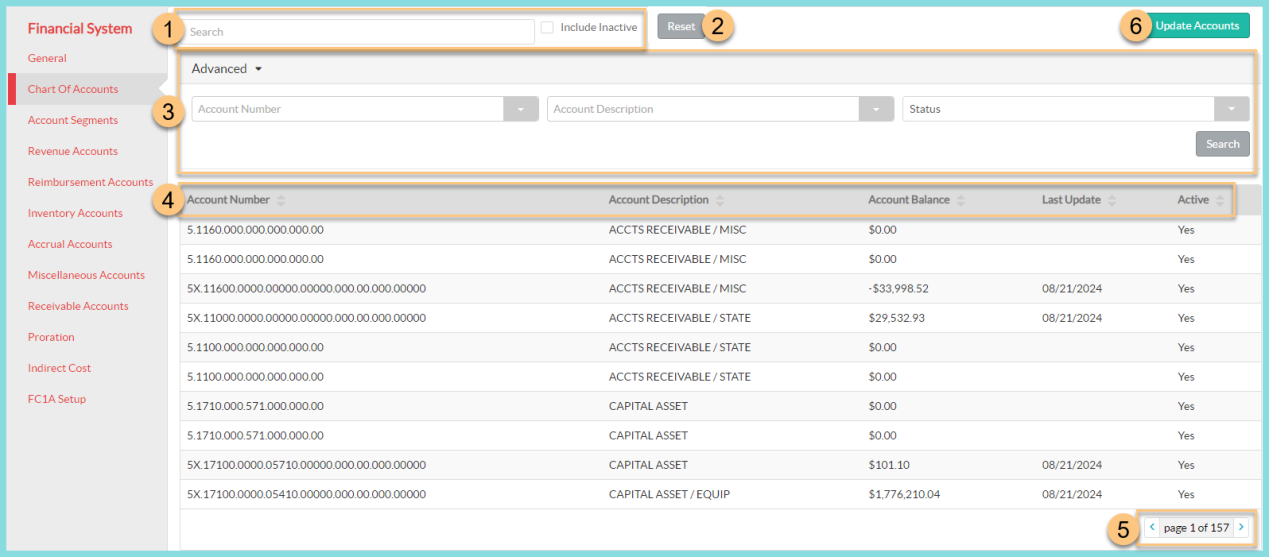
Use the Chart of Accounts tab to see a list of all accounts that have been imported from your ERP system to TITAN.
-
Search for an account by account number or description. Check to Include Inactive accounts if needed.
-
Click Reset to restore search and filter options back to their defaults.
-
Click Advanced to open the advanced filtering menu, if needed.
-
Filter chart of account results by Account Number, Account Description, or active Status.
-
Click Search to apply filters.
-
-
Notice the Chart of Accounts table headers including Account Number, Account Description, Account Balance, Last Update, and Active status. Click a column header to sort accounts by that column.
-
Use the < > arrows to navigate to additional pages as needed.
-
Click Update Accounts to initiate an account import through the integration from your ERP system to update the Account Balance field. Track the status of the import on the Financial System Integration Events page.
Note: This action is only available for LINQ ERP, LINQ ERP NC, V6, and Tyler integrations.