Financial Systems Indirect Cost Tab
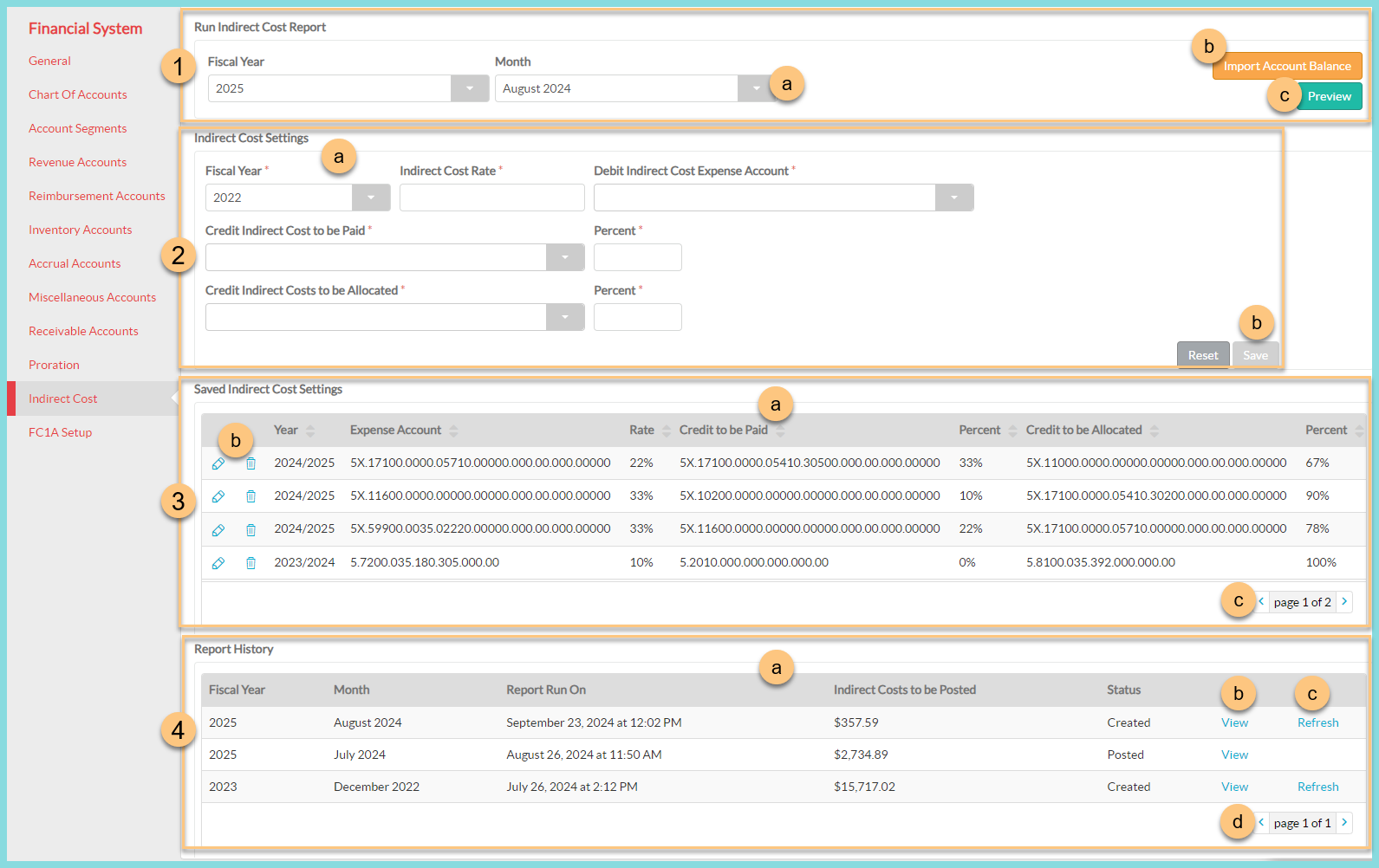
Use the Indirect Cost Tab to account for indirect costs to be paid or allocated.
Currently, Indirect Cost functionality is only available to integrations with LINQ ERP NC, LINQ ERP, or V6.
-
Run Indirect Cost Report.
Note: Inventory and Revenue summaries should be posted before posting your Indirect Cost Report.-
Select the Fiscal Year and Month for the report.
-
Click Import Account Balance to ensure all data has imported from your ERP system for the date selected.
-
Click Preview to generate a preview.
-
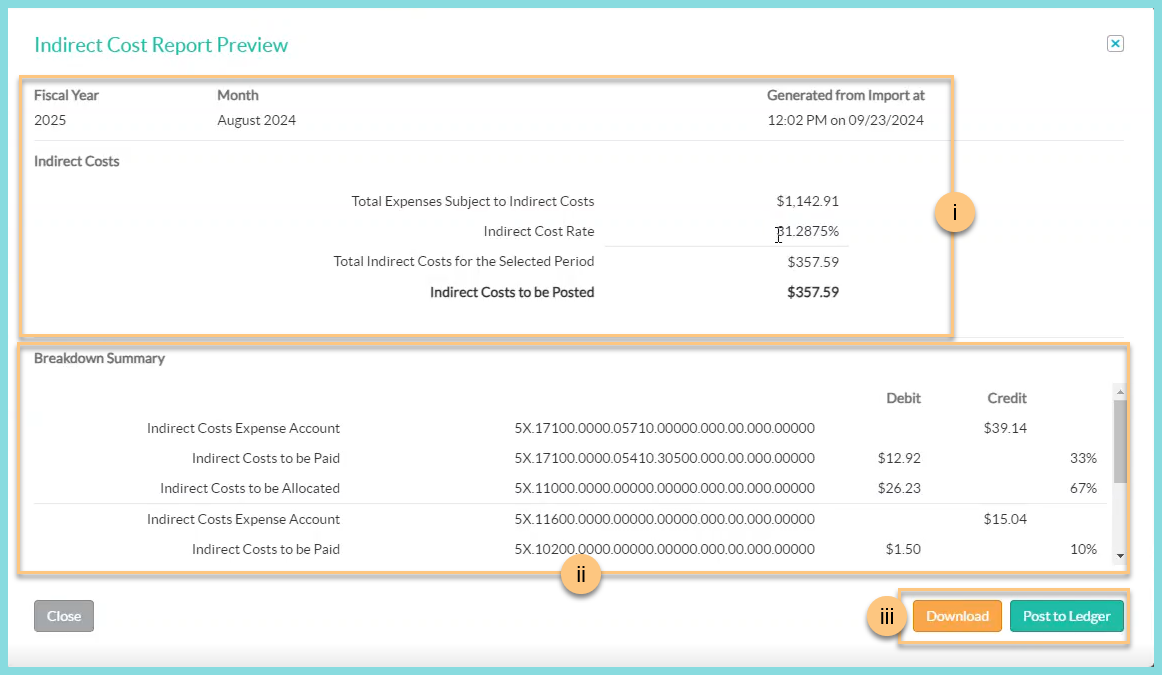
Note the Fiscal Year, Month, Generated time-stamp, and Indirect Cost Totals to be posted.
-
Note the Breakdown Summary of debits and credits that will be posted to the listed accounts.
-
Click Download to save a copy of the report to your local computer. Click Post to Ledger to submit the indirect cost report for the selected month to your general ledger.
-
-
-
Configure the Indirect Cost Settings for the fiscal year.
-
Configure the Fiscal Year, Indirect Cost Rate, Debit Indirect Cost Expense Account, and the account and Percent for Credit Indirect Costs to be Paid and Allocated.
-
Click Save to apply settings. Repeat Step 2 for every account that may be subject to indirect cost.
-
-
Note your Saved Indirect Cost Settings.
-
Note the table column headers including Year, Expense Account, Rate, Credit to be Paid, Percent, Credit to be Allocated, and Percent.
-
Click the Pencil to edit the Indirect Cost Settings as described in Step 2. Click the Trash Can to delete a saved Indirect Cost Setting.
-
Use the < > arrows to navigate to additional pages if needed.
-
-
View your Report History.
-
Note the table column headers including Fiscal Year, Month, Report Run On, Indirect Cost to be Posted, and Status.
-
Click View to view the Indirect Cost Report.
-
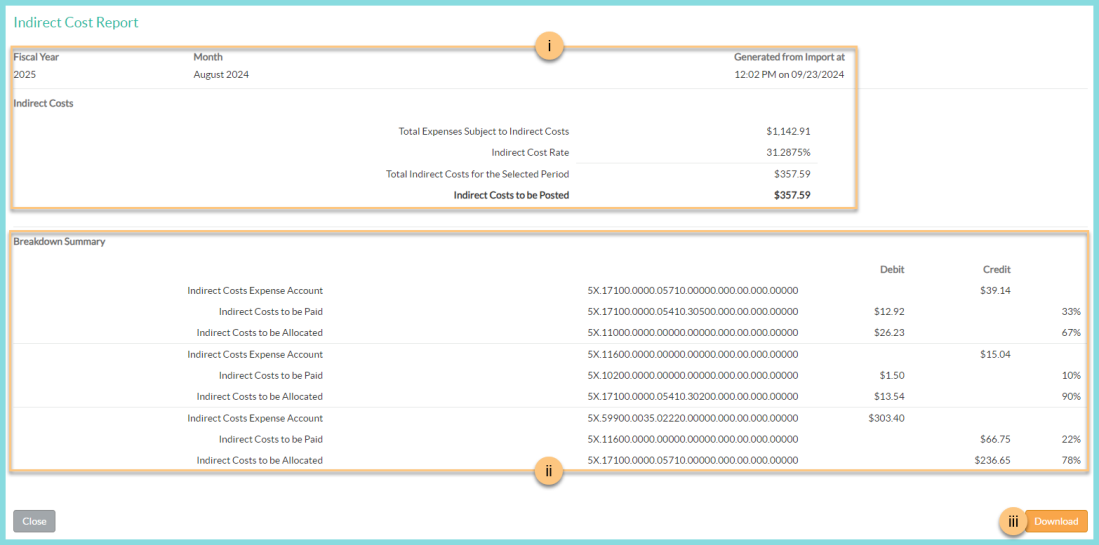
Note the Fiscal Year, Month, Generated time-stamp, and Indirect Cost Totals to be posted.
-
Note the Breakdown Summary of debits and credits that will be posted to the listed accounts.
-
Click Download to save this report to your local computer.
-
-
Click Refresh to update the report with the latest indirect cost information.
-
Use the < > arrows to navigate to additional pages if needed.
-