Financial Systems Proration Tab
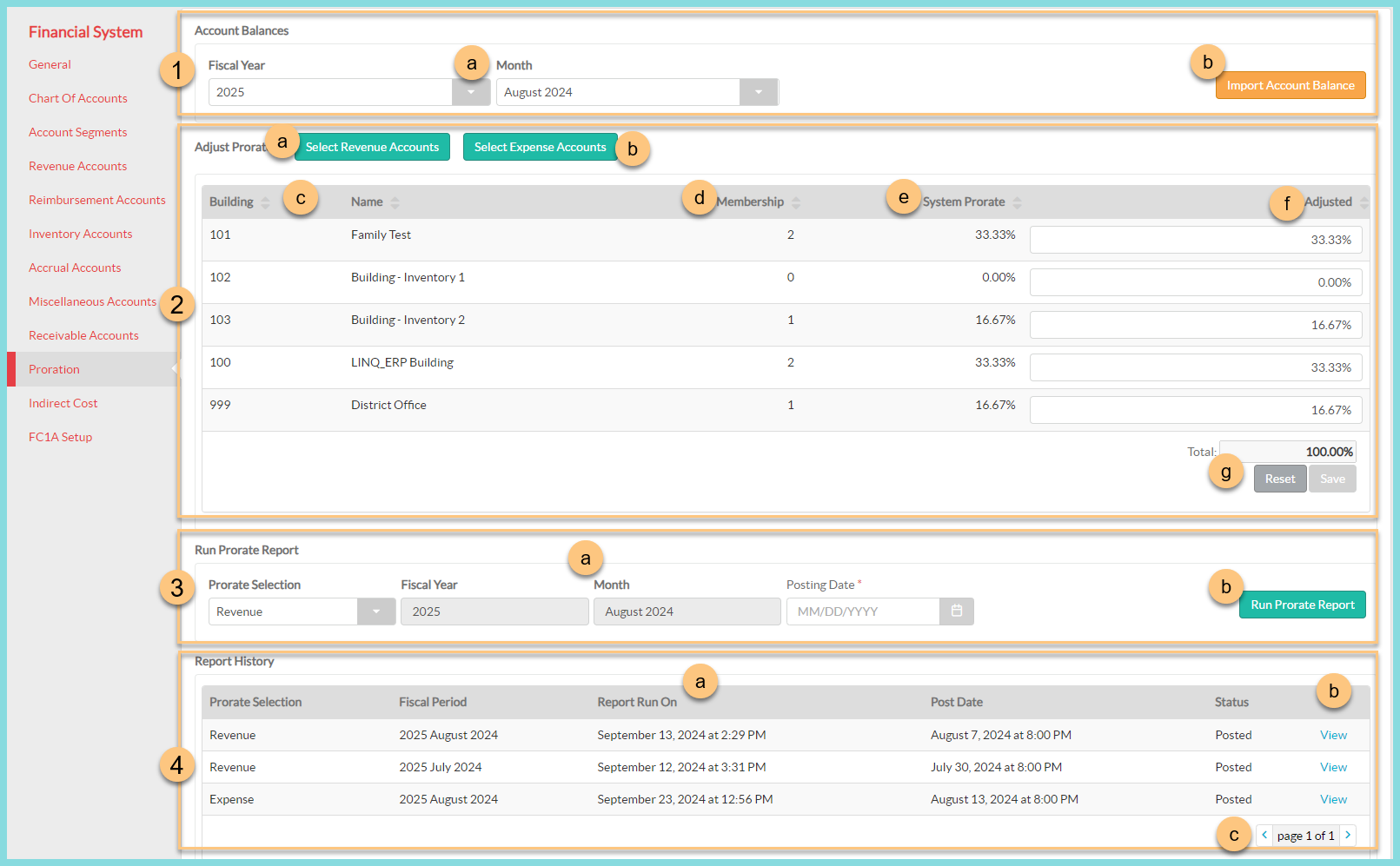
Configure prorate against membership with the Proration Tab.
Currently, Prorate functionality is only available to integrations with LINQ ERP NC, LINQ ERP, or V6.
-
Import Account Balances.
Note: Inventory and Revenue summaries should be posted before importing your account balances.-
Select a Fiscal Year and Month.
-
Click Import Account Balances to capture up-to-date information from your ERP system.
-
-
Adjust Prorate.
-
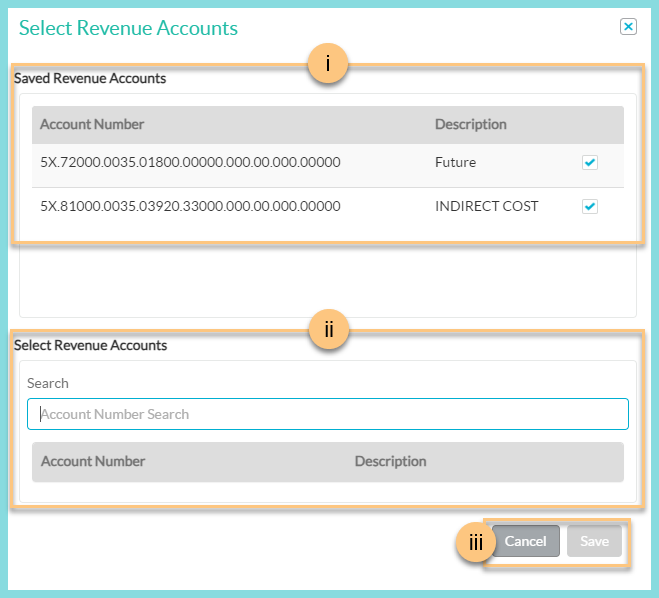
Click Select Revenue Accounts to identify which of your account codes are Revenue Accounts.
-
Note your Saved Revenue Accounts, if available.
-
Search for your Revenue Account numbers. Check the box to Select Revenue Accounts.
-
Click Save to save your selected accounts as revenue accounts. Click Cancel to close the modal.
-
-
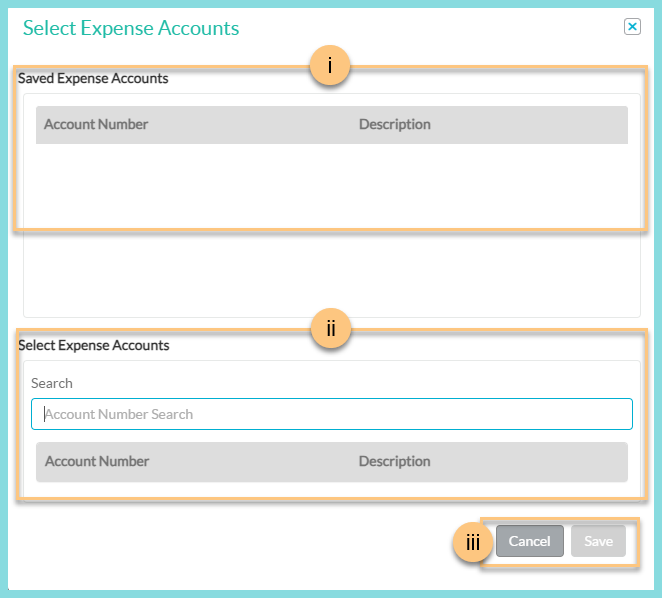
Click Select Expense Accounts to identify which of your account codes are Expense accounts.
-
Note your Saved Expense Accounts, if available.
-
Search for your Expense Account numbers. Check the box to Select Expense Accounts.
-
Click Save to save your select accounts as expense accounts. Click Cancel to close the modal.
-
-
Notice the Building number and Name.
-
Notice the system captured Membership.
-
Notice the System Prorate determined by the system captured membership.
-
Enter an Adjusted prorate to overwrite the System Prorate, if needed.
-
Confirm that the Total adjusted percentage is 100%. Click Reset to discard changes. Click Save to save adjustments.
-
-
Run Prorate Report.
-
Choose a Prorate Selection, note the Fiscal Year and Month that were selected in Step 1, and select a Posting Date.
Note: Revenue and Expense prorate reports are run and posted separately. -
Click Run Prorate Report.
-
-
View your Report History.
-
Note column headers including Prorate Selection, Fiscal Period, Report Run On, Post Date, and Status.
-
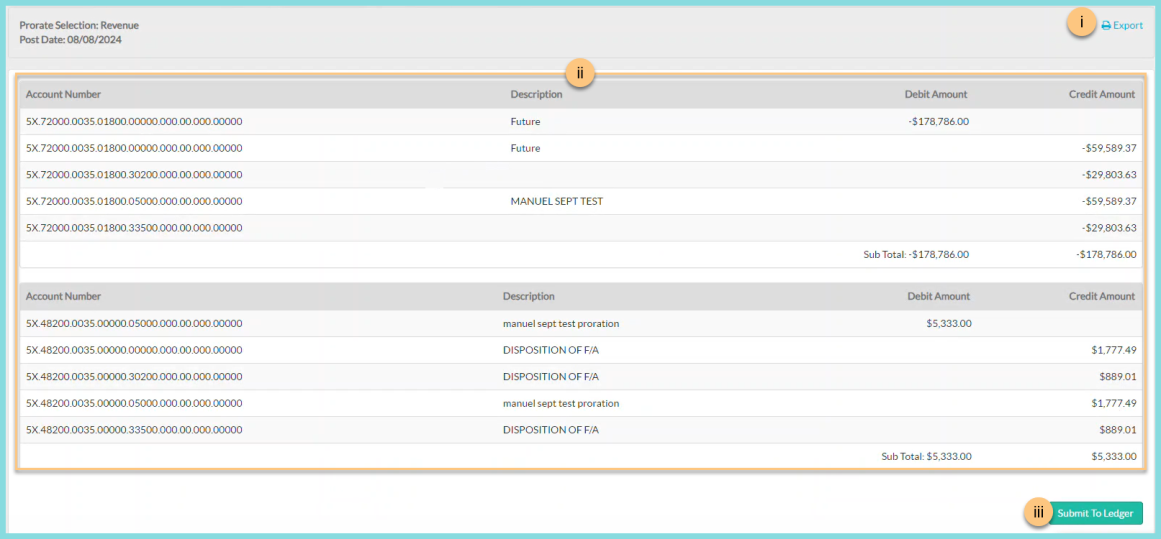
Click View to view the prorate report.
-
Click Export to download a copy of the report to your local computer.
-
Notice the Prorate Report Summary broken down by Account Number.
-
Click Submit to Ledger to post the prorate report for the period to the general ledger.
-
-
Use the < > arrows to navigate to additional pages as needed.
-