Financial Systems Receivable Accounts Tab
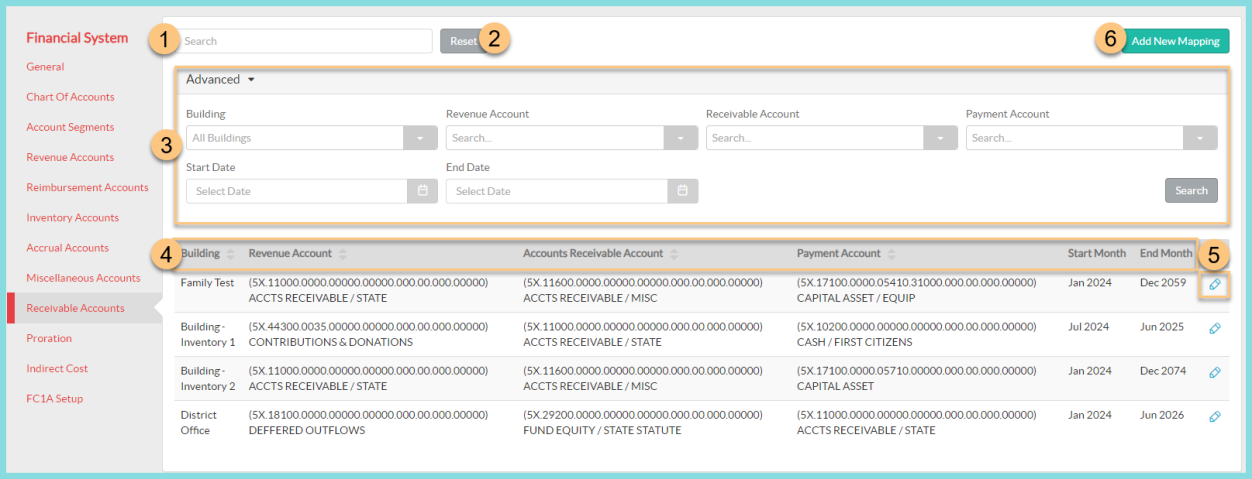
For districts utilizing Accounts Receivable in TITAN, use the Receivable Accounts tab to map your Revenue, Accounts Receivable, and Payment accounts.
-
Search for a previously configured Receivables Account mapping.
-
Click Reset to restore search and filter options back to their defaults.
-
Click Advanced to open the advanced filtering menu, if needed.
-
Filter mapped Receivable Accounts by Building, Revenue Account, Receivable Account, Payment Account, Start and/ or End Date by using the corresponding drop-down menu.
-
Click Search to apply filters to the Receivable Accounts mapping table.
-
-
Notice the Receivable Account table headers including Building, Revenue Account, Accounts Receivable Account, Payment Account, Start Month and End Month. Click a header to sort data rows by that column.
-
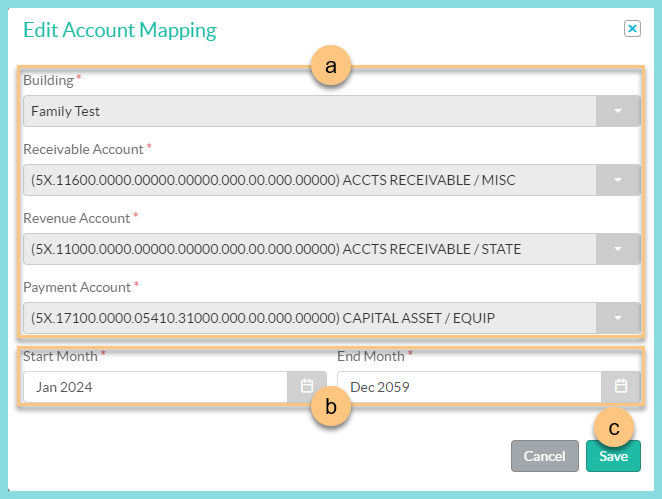
Click the Pencil to open the Edit Account Mapping modal.
-
Once a mapping has been created, the configuration details can be viewed, but cannot be changed.
-
Adjust the Start Month or End Month as necessary.
Note: Adjust the End Month to a previous month to expire the mapping. -
Click Save to apply any changes.
-
-
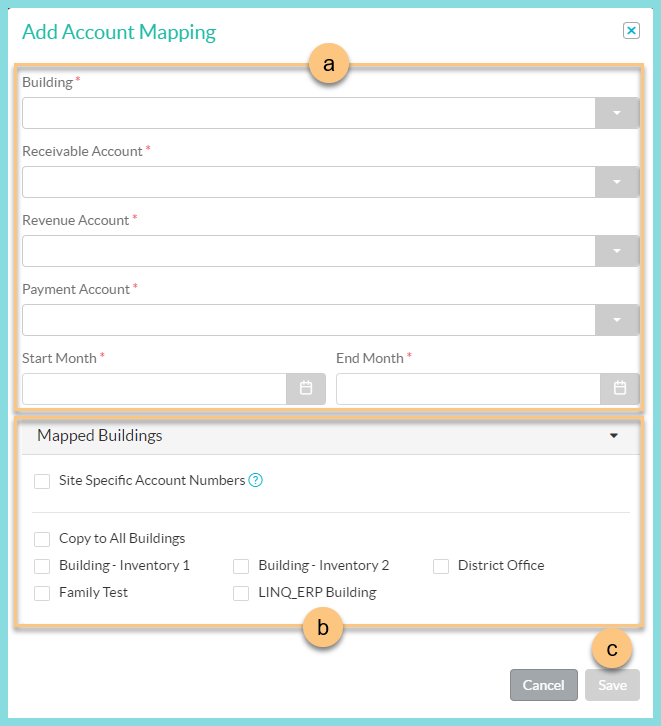
Click Add New Mapping to open the Add Account Mapping modal.
-
Select the Building, Receivable Account, Revenue Account, Payment Account, Start Month and End Month.
-
Click Mapped Buildings to expand the building configuration section.
-
Check Site Specific Account Numbers if you have a designated Receivables Account code for each building.
-
Check Copy to All Buildings if this account mapping can be used at all of your serving sites OR,
-
Check the buildings this account mapping applies to.
-
-
Click Save.
Repeat Step 6 as needed.
-