TITAN District Connect App Log In & Homescreen
The TITAN District Connect App is available for iOS devices at the app store.
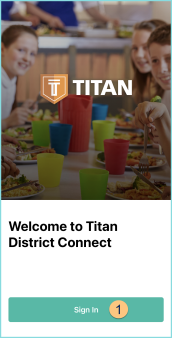
Once the app is open, click Sign In.
Sign In Screen
-
Sign In: click to sign in
-
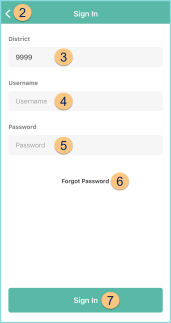
< - click to return to the previous screen
-
District: enter District Number
IMPORTANT: The TITAN District Connect app will not accept leading zeroes in the district number. If a district using the modules in this app has a district number with leading zeroes. That number will need to be changed. Be sure to inform all district staff of the change so that they can successfully log in to the district portal. -
Username: enter username
-
Password: enter password
-
Forgot Password: click to reset password
-
Sign In: click to sign in and be redirected to the Home Screen
Home Screen
-
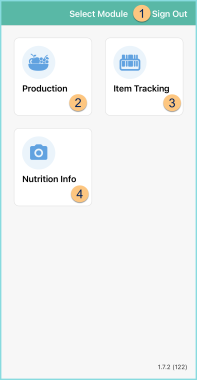
Sign Out: Click to log out of the app
-
Production: click to be redirected to the Production Module screen
-
Item Tracking: click to be redirected to the Item Tracking Module screen
-
Nutrition Info: click to be redirected to the Nutrition Info Module screen