Bank Account Register
Reports > Accounting > Bank Account Register
-
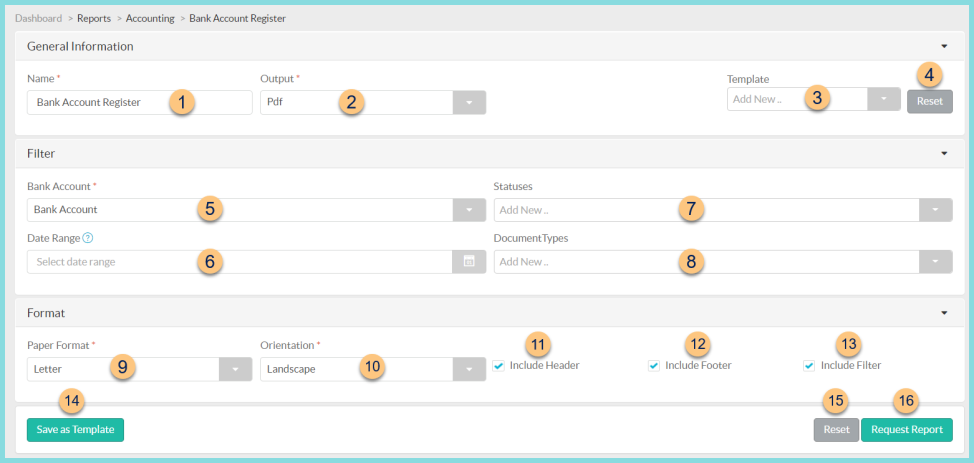
Name - enter a report name
Default: Bank Account Register -
Output - select output format (Html, Pdf (default))
-
Template - select a report template
-
Reset - click to reset to default options
-
Bank Account - filter by bank account
-
Date Range - select the date range
-
Statuses - filter by status (Posted, Reconciled, Voided)
-
Document Types - filter by document type (Check, Deposit, Ledger)
-
Paper Format - choose a paper format (CR80, Legal, Letter (default))
-
Orientation - choose orientation (Landscape, Portrait (default))
-
Include Header - check to include report header
-
Include Footer - check to include report footer
-
Include Filter - check to include selected filters
-
Save as Template - click to save the selected filters and columns as a template
-
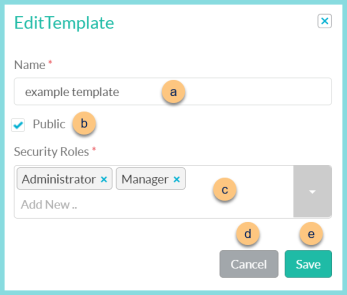
Name - enter a template name
-
Public - check to make the template available to other users
-
Security Roles - select the security roles that can access a Public template
-
Cancel - click to return to the previous screen without saving the template
-
Save - click to save the template
-
Reset - click to reset to defaults
-
Request Report - click to request report
Note: Report will appear in the bell icon when complete
Report Format
-
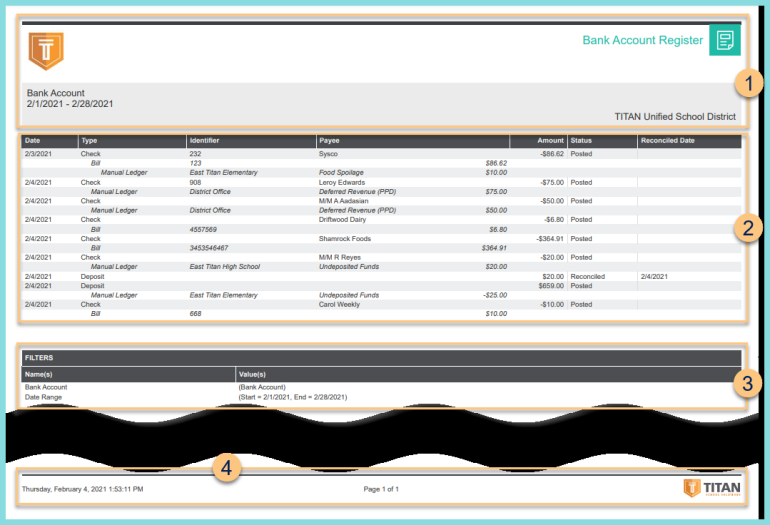
Header - notice the District Logo, Report Title, Bank Account Name, Date Range, and District Name.
-
Register - notice the documents including the date, type, identifier, payee, amount, status, and reconciliation date of each transaction
-
Filters - notice the name(s) and value(s) of selected filters
-
Footer - notice the date and time the report was requested, pages, and TITAN logo