Building Data Report
Reports > Building > Building Data
The Building Data Report presents detailed information on buildings.

-
Name - enter a report name
Default: Building Data -
Output - select output format
Csv, Excel, Html, Json, or Pdf (default) -
Template - select a report template
-
Reset - click to reset to default options
-
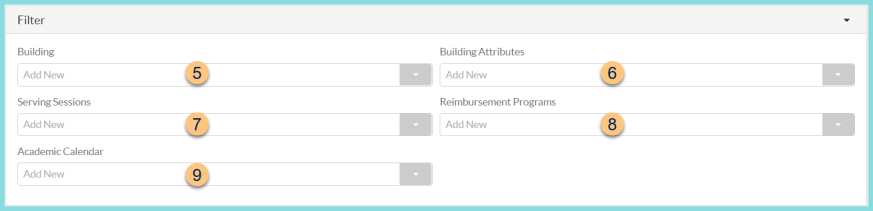
Building - filter by building(s)
-
Building Attributes - filter by building attribute(s)
-
Serving Sessions - filter by assigned serving session(s)
-
Reimbursement Programs - filter by assigned reimbursement program(s)
-
Academic Calendar - filter by assigned academic calendar(s)
-
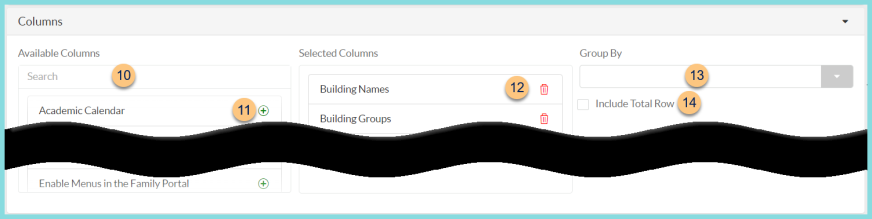
Search - search for available columns
Note: Columns are defined below -
(+) - click or drag and drop to move available sort columns to the Selected Columns field
-
Drag and Drop to rearrange Selected Columns or click the Trash Can to remove a column from the selected columns field
-
Group By - choose one of the available column types to insert pages breaks at changes in value of the selected field
-
Include Total Row - check to include a total row at the bottom of the report
-
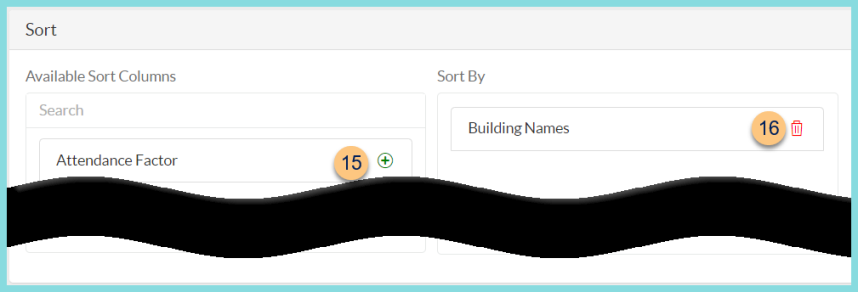
(+) - click or drag and drop to move available sort columns to the Sort By field. Note: Selected Columns (Step 11) are available for sorting.
-
Drag and Drop to arrange Sort By columns in order of sort priority or click the Trash Can to remove a field

-
Paper Format - choose a paper format
CR80
Legal
Letter (default) -
Orientation - choose orientation
Landscape
Portrait (default) -
Include Header - check to display report header on PDF or header row on CSV
-
Include Footer - check to display report footer on PDF
-
Include Filter - check to display selected filters on PDF
-
Save as Template - click to save the selected filters and columns as a template
-
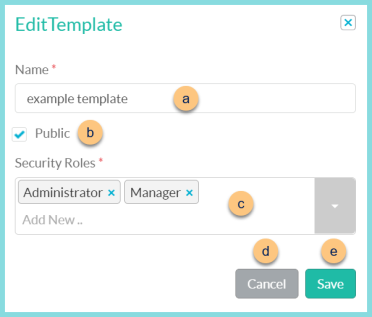
Name - enter a template name
-
Public - check to make the template available to other users
-
Security Roles - select the security roles that can access a Public template
-
Cancel - click to return to the previous screen without saving the template
-
Save - click to save the template
-
Reset - click to reset to defaults
-
Request Report - click to request report
Note: Report will appear in the bell icon when complete
Column Definitions
| Column | Definition |
|---|---|
| Academic Calendar | Academic Calendar(s) of the Building |
| Address | Building Address(es) |
| Building Abbreviation | Building Abbreviation |
| Central Warehouse | Building's Central Warehouse |
| Claim with Building | Claim with Building |
| Contacts | Building Contacts |
| Delivery Number | Delivery Number |
| Enable Feed It Forward | HTML, PDF: Checkmark if
Enable Feed It Forward is checked, blank if not checked
CSV, EXCEL, JSON: True if Enable Feed It Forward is checked, blank if not checked |
| Enable Menus in LINQ Connect | HTML, PDF: Checkmark if
Enable Menus in LINQ Connect is checked, blank if not checked
CSV, EXCEL, JSON: True if Enable Menus in LINQ Connect is checked, blank if not checked |
| Grade Groups | Grade Groups |
| Homerooms | Homerooms |
| Identify Persons By | Identify Persons By |
| Inventory Route | Inventory Route |
| Other School Served | Other Schools Served |
| Phone Number | Phone Number(s) |
| Requires Approval on All Orders | HTML, PDF: Checkmark if
Require Approval on All Orders is checked, blank if not checked
CSV, EXCEL, JSON: True if Require Approval on All Orders is checked, blank if not checked |
| Scan Each Item on Fulfillment | HTML, PDF: Checkmark if
Scan each item on fulfillment is checked, blank if not checked
CSV, EXCEL, JSON: True if Scan each item on fulfillment is checked, blank if not checked |
| Scan Each Item on Receipt | HTML, PDF: Checkmark if
Scan each item on receipt is checked, blank if not checked
CSV, EXCEL, JSON: True if Scan each item on receipt is checked, blank if not checked |
| Serving Sessions | Serving Sessions |
| State Number | State Number |
| Storage Location | Storage Location |